Team workflows and approvals for e-signature
Decide who sends, who approves and who signs in what order — and keep every hand-off on the record.
- Team roles, owner to viewer
- 5Team roles, owner to viewer
- Signing modes: sequential or parallel
- 2Signing modes: sequential or parallel
- Automatic reminders, days 1, 3 and 7
- 3Automatic reminders, days 1, 3 and 7
- Accounts your signers need
- 0Accounts your signers need
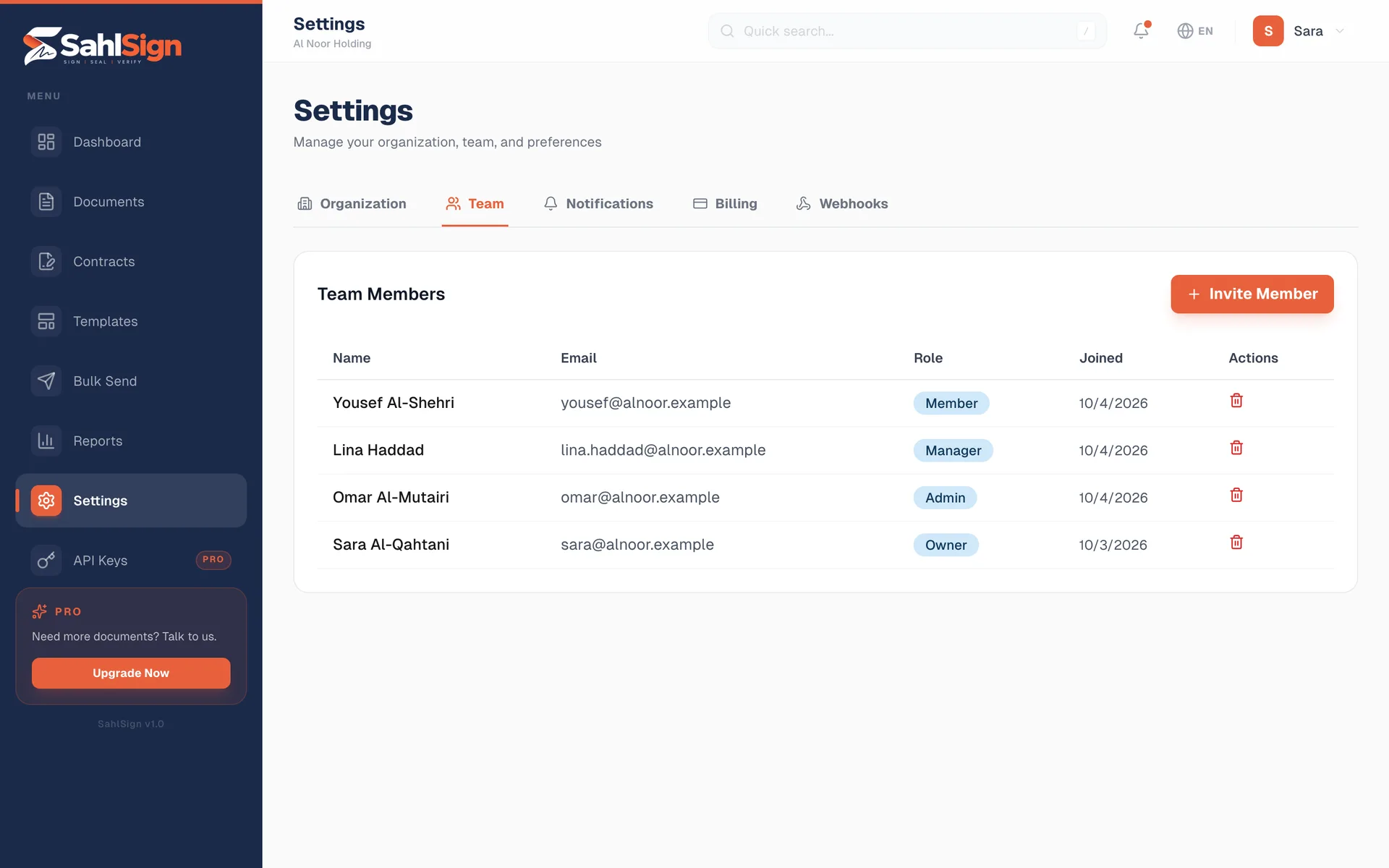
One workspace, clear roles
Five roles
Owners and admins run the workspace; managers send and see every document; members work on their own; viewers read what they are given. Change a role any time.
Inviting your teamSent in your name
Invitations carry your organisation’s name, logo and colour, and can come from your own verified email domain.
Custom sender addressThe right people, in the right order
Sequential or parallel
Let everyone sign at once, or set an order so each signer can only sign when it is their turn. The order is enforced on every step of signing, not just shown on screen. Add CC recipients who get the signed copy.
Sequential signingReassign or delegate
Swap a pending signer from the document page, or let a signer pass the request to the right person. The old link stops working, the new signer verifies from scratch, and the change is recorded on the certificate.
Reminders that stop on their own
Pending signers are reminded automatically one, three and seven days after sending — only when it is their turn — and you can nudge anyone from the document page.
How reminders workA clean way to say no
A signer can decline with a reason. The document is voided for everyone, and the decline is recorded in the audit trail.
When a signer declinesNothing goes out unapproved
For contracts managed in SahlSign, approval rules decide who must sign off before a contract can be sent for signature.
Rules by type, department and value
Route by contract type, department or value and currency, in sequential steps where any listed approver can decide. The person who submitted can never approve their own request, and an approval covers the exact version it was given for.
Internal comments
Discuss a contract with colleagues and @mention them; they are emailed. Comments stay internal and are never shown to the other party.
Webhooks to your systems
Owners and admins can send signing and contract events — sent, signed, completed, declined, approved, renewed — to your own endpoint, signed so you can verify them.
What SahlSign does not offer yet
- Single sign-on (SAML) and SCIM user provisioning.
- Two-factor sign-in for team members.
- Approval rules for one-off documents sent outside contract management.
Everything else on this page is live today.
Frequently asked questions
Can a signer forward the request to a colleague?
Yes — from the signing page, “Someone else should sign this” sends a fresh link to the person they name and tells you who it went to. Their own link stops working.
Who can see a member’s documents?
The member, plus managers, admins and the owner of your workspace.
Do approvals apply to e-signature documents too?
Approval rules apply to contracts managed in SahlSign. A document you upload and send directly goes straight to its signers.
Bring your team in
Start free, invite colleagues and send your first multi-signer document today.
Start free